
If you’re like millions of other users, you use Excel spreadsheets to plan your budgets, track sales or expenses, and organize all sorts of data. You may even use Excel to work with private or confidential information.
If you have data in a spreadsheet that you don’t want just anyone else to see, you can password protect that Excel file. I’ve found that requiring people to enter a password to access an Excel file keeps your private information private — while still allowing you, and anyone else with the password, proper access.
![Download 10 Excel Templates for Marketers [Free Kit]](https://no-cache.hubspot.com/cta/default/53/9ff7a4fe-5293-496c-acca-566bc6e73f42.png)
Let’s go through how you can password protect your Excel files.
How to Password Protect an Excel File
In my decade-long use of Excel, I’ve used spreadsheets to house all sorts of personal and business information.
If I don’t want to share that information with others, all I have to do is password protect the document — and then only share the password with those who need access.
For example, I’ve worked at many businesses that use Excel to store confidential employee information — social security numbers, salaries, and the like.
You don’t want random employees to access this private info, so the best approach is for the human resources (HR) department to password protect that particular file.
HR can then share that password with key management, who need to see the data but use password protection to keep the data away from other employees’ prying eyes.
Here’s how to do it:
Password Protect on Windows
Step 1: Open Document
From within Excel, open an existing spreadsheet or create a new one.
Step 2: Click File
From within the spreadsheet, click File on the menu bar.
Step 3: Click Info
On the next page, click Info in the left column.
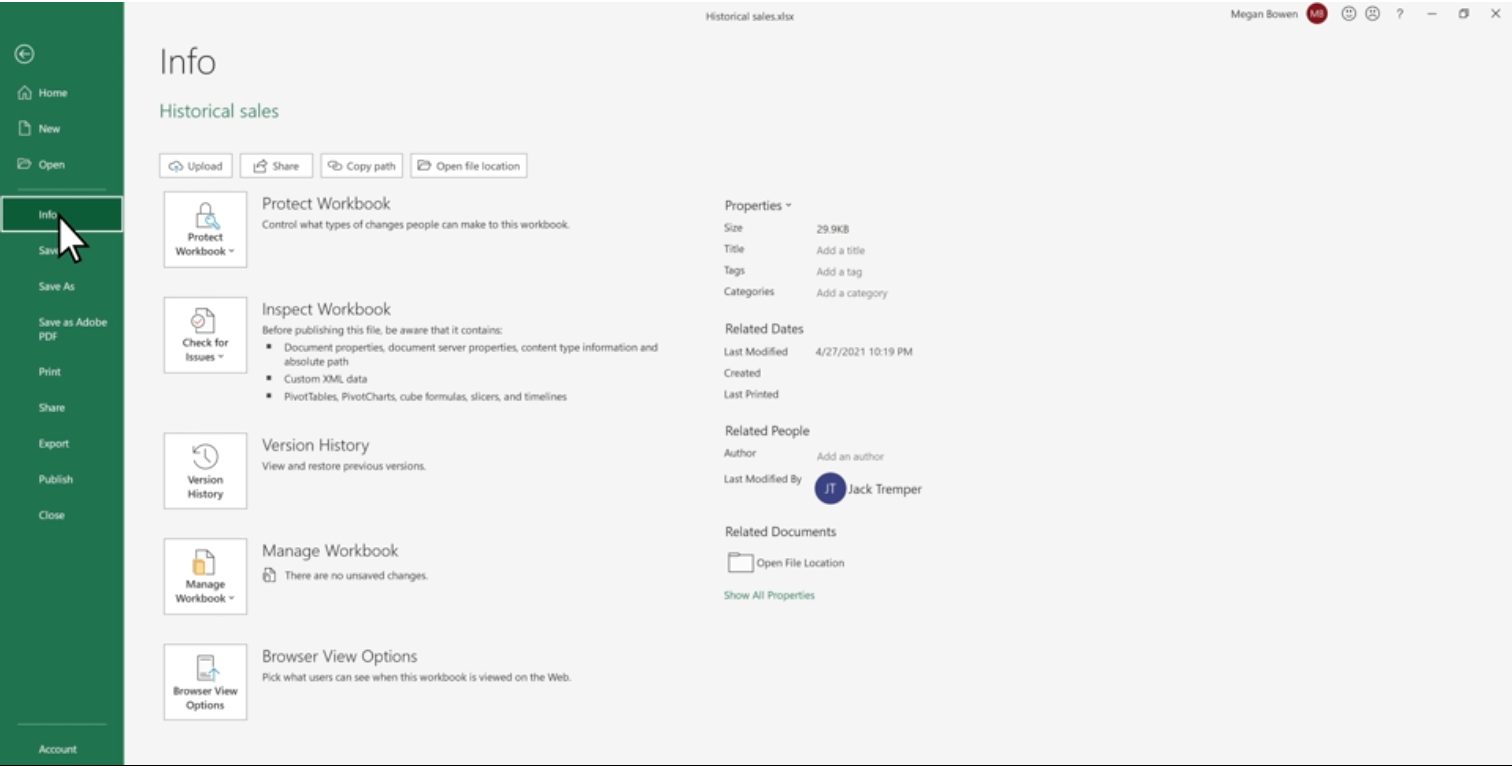
Image Source
Step 4: Add Protection
Click the Protect Workbook button to display the drop-down menu.
Step 5: Encrypt Document
Select Encrypt with Password. This displays the Encrypt Document dialog box.

Image Source
Step 6: Create Password
Enter the desired password into the Password field, then click OK. The longer and more complex the password, the better. Try not to enter common words or phrases that others could easily guess.
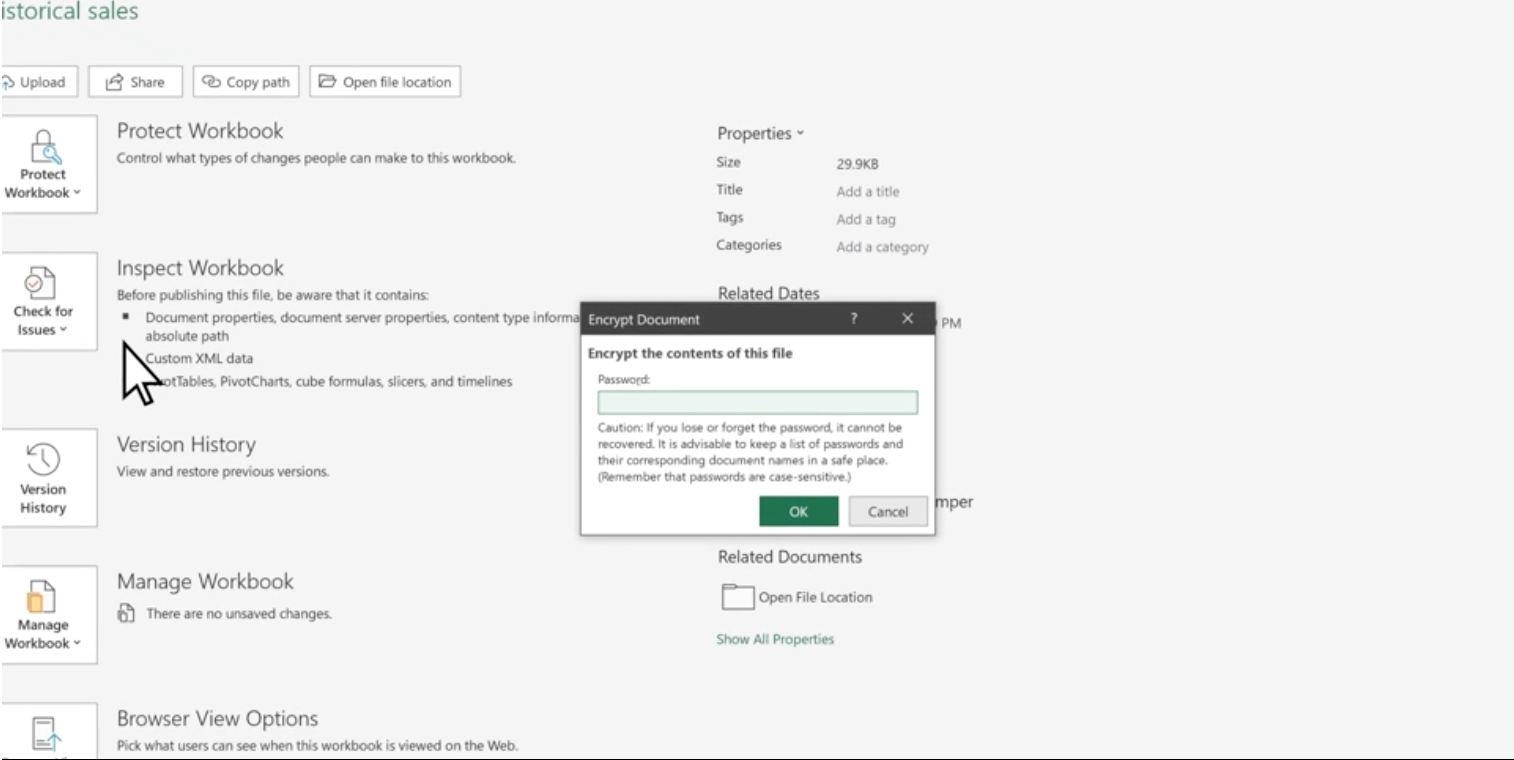
Image Source
Step 7: Confirm Password
Excel now prompts you to confirm the password. Re-enter the password into the Reenter Password field and click OK again.
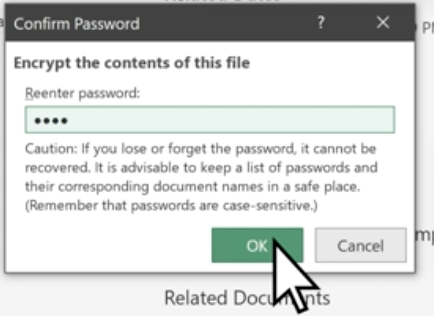
Image Source
Password Protect on Mac
Step 1: Open Document
From within Excel, open an existing spreadsheet or create a new one.
Step 2: Click File
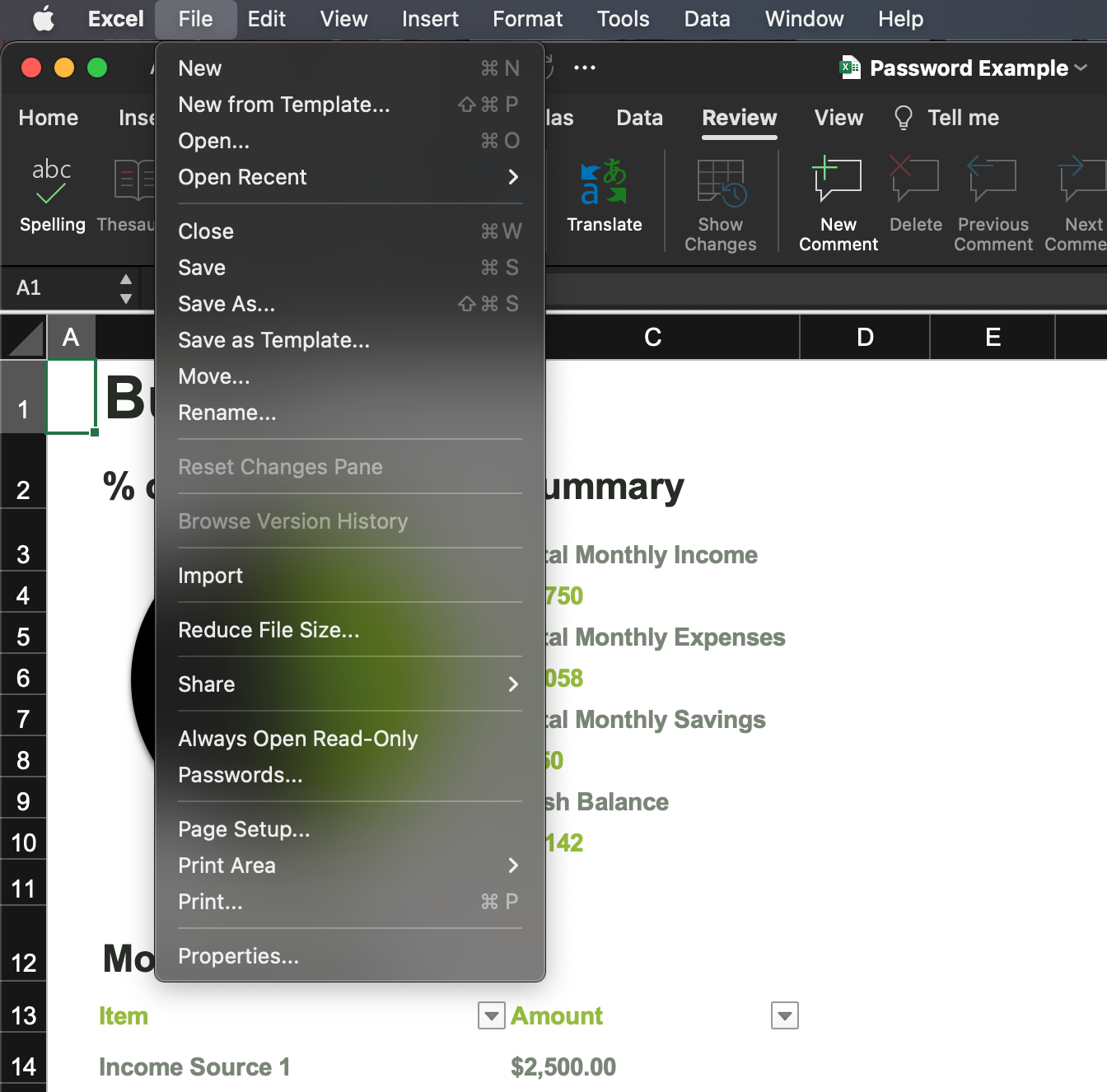
From within the spreadsheet, click File on the top menu bar.
Step 3: Click Passwords
Next, click Passwords… in the dropdown menu.
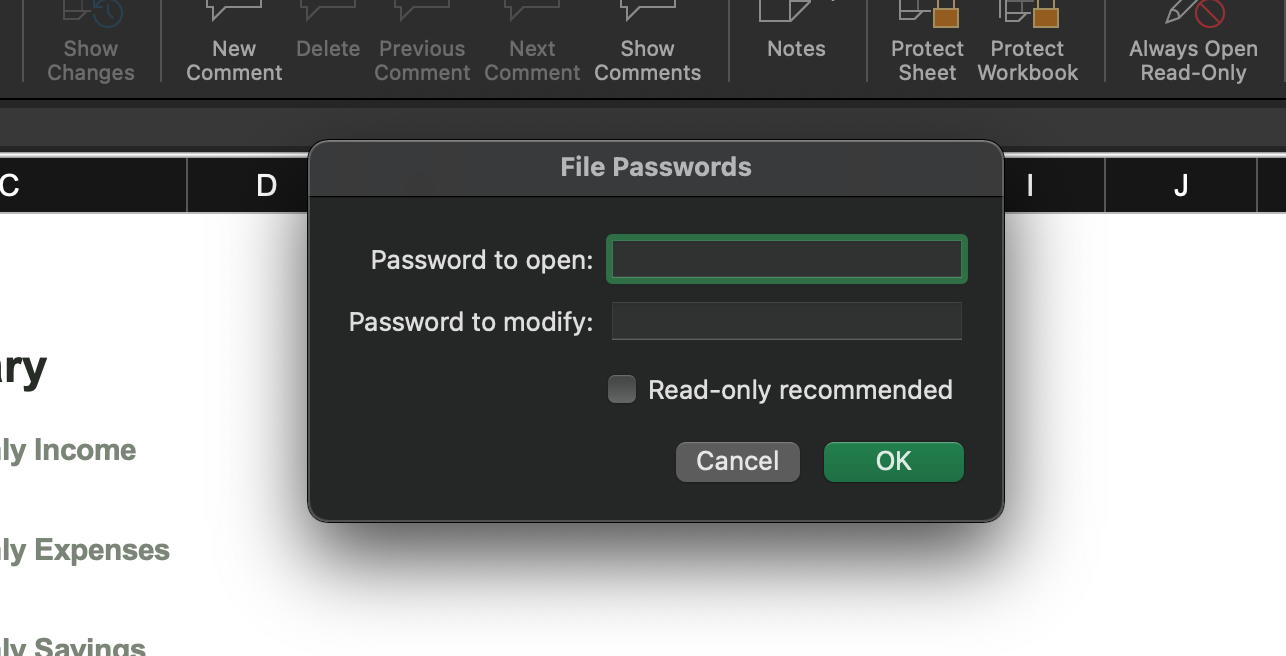
Step 4: Create Password
Enter the desired password into the Password field, then click OK. You can create two different passwords, one for opening the file and another for modifying it. Recall that the passwords are case-sensitive.
The longer and more complex the password, the better. Try not to enter common words or phrases that others could easily guess.
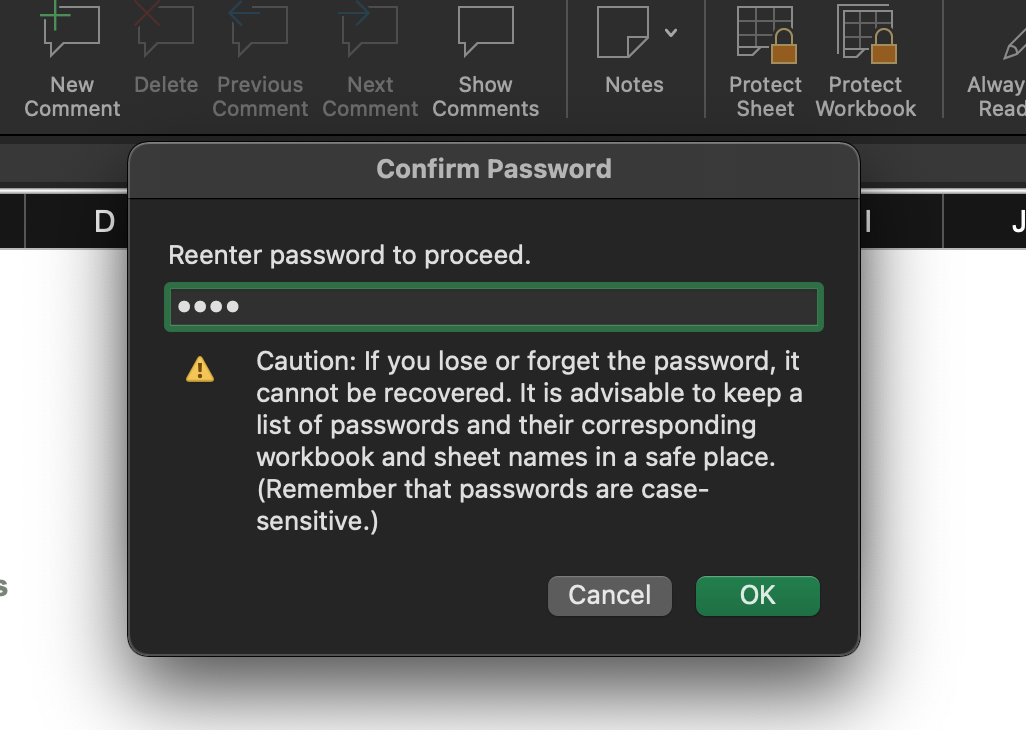
Step 5: Confirm Password
Excel now prompts you to confirm the password. Re-enter the password into the Reenter Password field and click OK again. Heed their warning that if the password is lost or forgotten, it is not recoverable.
Step 6: Press Save
Press Save in order to save the password to your document. The next time you open the file, you will be prompted to provide the password before it opens.
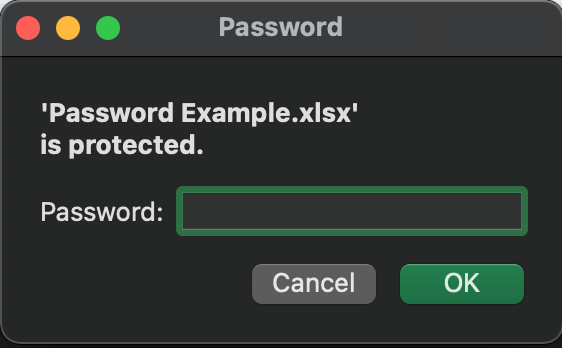
Reopening a Protected File
Going forward, every time you try to open the file, Excel will prompt you for the password. When prompted, enter the password you created. If you enter the wrong password, you won’t be able to open the file.
You can share your password with others if need be. For example, if you create a password protected file that your entire team at work needs to access, share the password with other members of your team. Each member can access the spreadsheet by using that password.
I’ve found that the most common problem with password protecting Excel files is forgetting the password. You probably want to write down the password and keep it in a secure place. I like emailing passwords to myself, which I can then store in folders in my email program.
I’ve found that password protecting an Excel file is a good way to keep personal information personal. It’s easy to do and keeps others from seeing information you’d rather keep private.
If you do share your spreadsheets, Excel also lets you lock specific cells so others can’t change the data you enter. To learn how, read our companion article, Running Into Issues in Shared Excel Sheets? Learn How to Lock Cells. I know you’ll find it useful.
When to Use Password Protect
I’ve found Excel’s password protection to be quite useful when dealing with sensitive data. Here are four scenarios where you might want to use password protection.
Working With Confidential Information
Password protection is essential if you’re working with confidential information that cannot be shared with others. This most commonly occurs with work-related information that you don’t want competitors or the general public to see, such as plans for new products or services.
Protecting Your Personal Data
There are lots of bits and pieces of personal information that I need to store someplace and don’t want others to access. I’m talking about bank account and credit card numbers, email addresses, financial information, and the like. This type of personal information is easily stored in an Excel spreadsheet, which you can then keep secure via password protection.
Storing Other Passwords
If you’re like me, you have unique usernames and passwords for dozens, if not hundreds, of apps, services, and websites — and you can’t possibly remember them all. I store all my passwords in a single Excel spreadsheet and then protect that spreadsheet with a single password.
When I can’t remember how to log onto a given website, all I have to do is open that password protected Excel file, and the information I need is right there.
Creating Gift Lists
Here’s one I use all the time, especially around the holiday season. I keep a master spreadsheet of all the presents I’ve purchased for family members and then password protect it to hide it from snooping eyes. I don’t want my wife or children to see what I’ve bought for them and spoil the surprise!
Getting Started
Password-protecting your files can help you keep information private. That’s especially helpful if your team works with proprietary information and data. Now, you can keep your work confidential with just a few simple steps.

Credit: Source link