
Are you tired of wrestling with Excel spreadsheets? Perhaps you’re looking for a more collaborative and user-friendly experience for your team. Using Google Sheets may be the answer to your frustrations.
![→ Access Now: Google Sheets Templates [Free Kit]](https://no-cache.hubspot.com/cta/default/53/e7cd3f82-cab9-4017-b019-ee3fc550e0b5.png)
The cloud-based platform makes it easy to manage and organize data. You can also work collaboratively within the same interface you’re used to with other Google products. No matter where your colleagues live, you can work together.
Getting started is easy. Keep reading to learn how to convert an Excel document to a Google Sheet and vice versa.
The Benefits of Converting Excel Documents to Google Sheets
You might want to convert your Excel documents to Google Sheets for a variety of reasons. Google Sheets offers very similar functionality to Excel with additional collaboration capabilities. You can even access your Sheets on any computer.
Further, Google Sheets allows you to view previous versions, hyperlink between applications, and work at scale.
Google Sheets is the perfect option for those who work in teams or shared projects. However, Excel has more comprehensive data management capabilities. Excel is great for those managing large amounts of data.
How to Convert an Excel Document to a Google Sheet
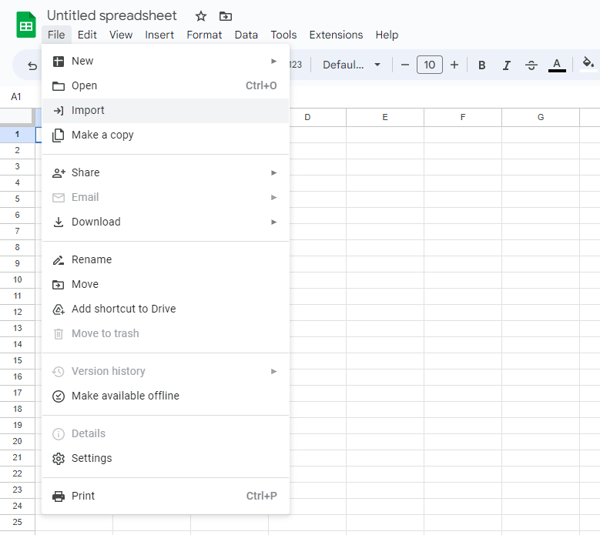
1. Go to Google Sheets and hit File → Import.
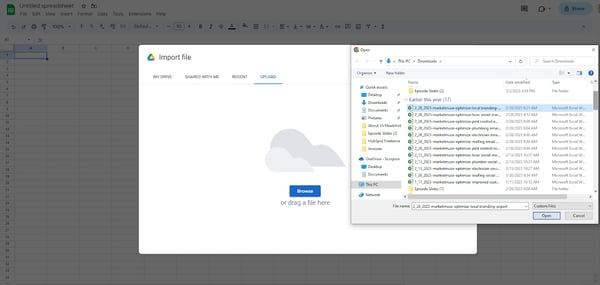
2. Choose the Excel file.
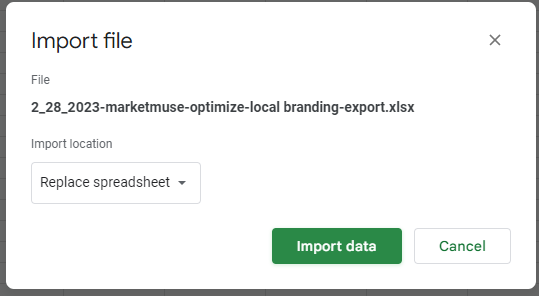
3. Click “Import data.”
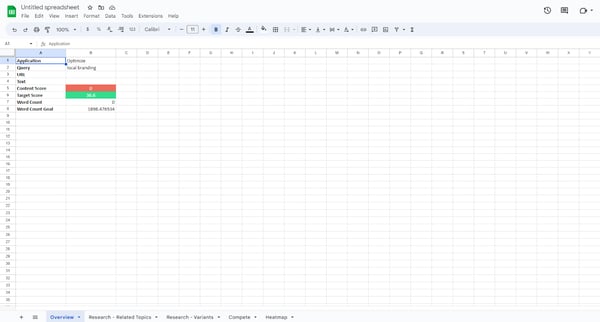
4. Data will then be imported and ready for you to edit.
How to Convert a Google Sheet into an Excel Document
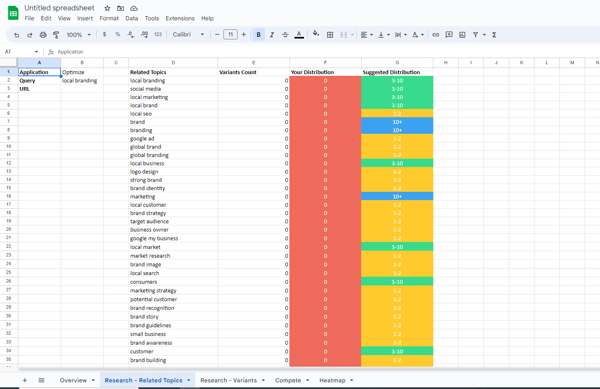
1. Open Google Sheet.
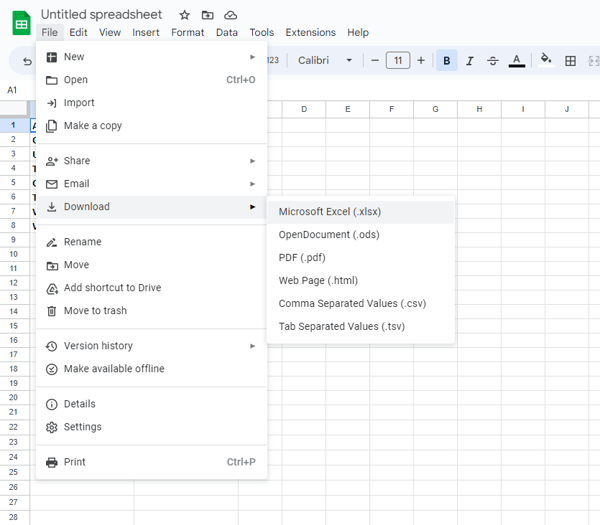
2. Click File → Download → Microsoft Excel.
3. Voila! You now have an Excel doc you can edit and save on your computer.
Limitations of Converting Documents Between Excel and Google Sheets
1. Formatting Issues
Sometimes, you might encounter formatting issues when converting documents to Google Sheets. Most of these bugs have been fixed. However, if your document is filtered or has special formulations, there could be issues.
If so, they are usually easy to fix. All you need to do is Google the exact error.
2. Data Volume
Excel can accommodate a much higher volume of data than Google Sheets.
If you want to convert an Excel document with more than 400,000 cells into a Google Sheet, you might not be able to include all the data.
3. Statistical Analysis and Visualization.
Similarly, Excel has higher functionality when it comes to statistical analysis and visualizations.
If you have an Excel document that includes these features, you’ll run into limitations when converting it to a Google Sheet.
Converting to Google Sheets
Many teams work with both Excel and Google Sheets. Luckily, converting between the two is fairly painless and shouldn’t take you more than a few minutes.
Just follow the steps above to get started.

Credit: Source link